1. Overview
The Labbaik app for Zoom connects your masjid, madrasah or maktab's own Zoom account to Labbaik. Once it's connected, Labbaik:
- creates a Zoom meeting for each online class and online event
- lets teachers and admins start the class from Labbaik
- lets students and parents join inside the Labbaik parent portal, without a separate Zoom link
- marks a student present when they join an online class.
The meetings are created on your Zoom account, so they appear in your Zoom Meetings list like any other meeting.
Pre-release: the Labbaik app for Zoom is being reviewed for the Zoom App Marketplace and isn't publicly available yet. Until it's approved, the Connect button shows "Coming soon" for most organisations. This guide describes how the app works once it's available.
2. Before You Start
- A Labbaik admin account for your organisation. Only admins can connect or disconnect Zoom.
- A Zoom account where you're the owner or an admin. The app is installed for the whole Zoom account, so Zoom only lets an owner or admin approve it.
- Any Zoom plan. A free (Basic) Zoom account works, but Zoom ends free meetings after 40 minutes, and Labbaik shows a reminder on longer classes. For longer classes, use Zoom Pro or higher.
- One Zoom account per organisation. Every online class and event uses the account you connect.
- Zoom or Labbaik Live, not both. If your organisation uses Labbaik Live (Labbaik's own video classes), turn it off under Connected apps before connecting Zoom.
3. Adding the App
You add the app from inside Labbaik. If you found Labbaik on the Zoom App Marketplace, follow its link to Labbaik and start at step 1. Check you have everything in Before You Start first.
- Sign in to Labbaik at app.uselabbaik.com as an admin.
- Open Account → Connected apps.
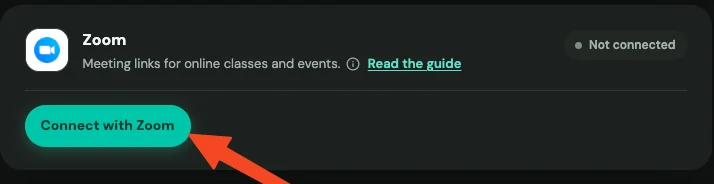
- On the Zoom card, click Connect with Zoom.
- Sign in to Zoom with the owner or admin account you want to use.
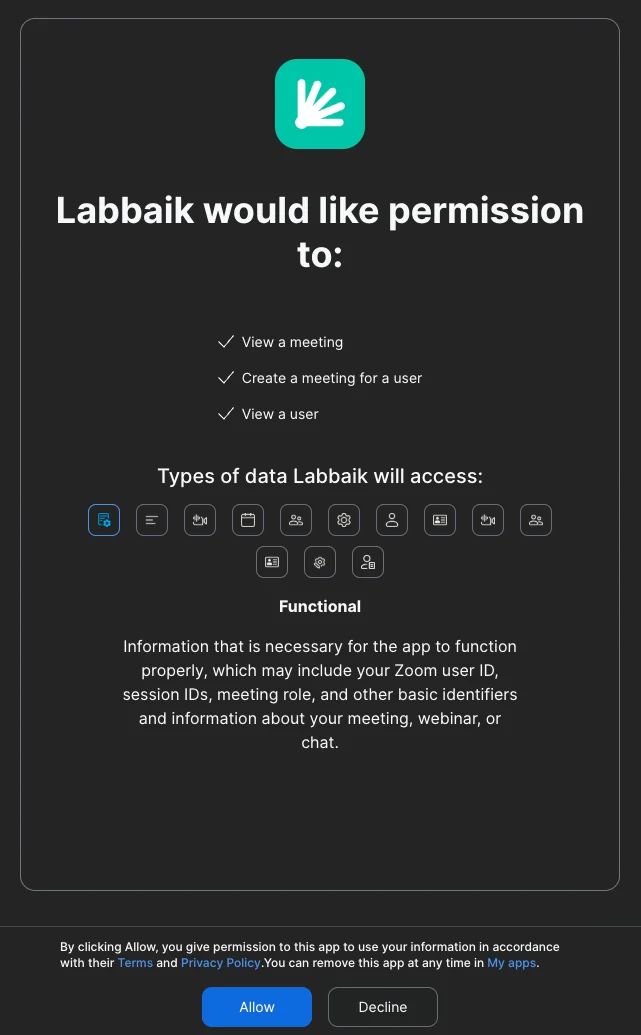
- Zoom shows the permissions Labbaik is asking for (listed below). Click Allow.
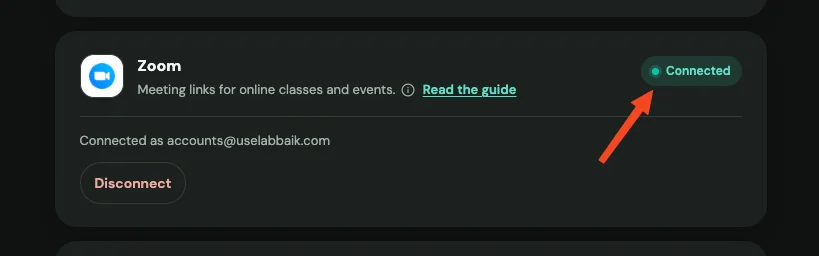
- You're taken back to Connected apps, where the Zoom card shows Connected and the email of the Zoom account you connected.
If any step doesn't work, see Troubleshooting.
Permissions Labbaik asks for
- View your user information: Labbaik reads the connected account's user ID, email and plan type when you connect and when it creates a meeting. The plan type tells Labbaik whether to remind you that free Zoom meetings end after 40 minutes.
- Create meetings: Labbaik creates a meeting for each online class or event.
- Meeting started and ended notifications: Zoom tells Labbaik when a meeting starts and ends, so the class shows as live in the parent portal.
4. Running Online Classes
You'll need: Zoom connected (see Adding the App), a Labbaik admin or teacher account, and a class with at least one student whose parent has a Labbaik parent portal login.
Make a class online
- Open Education → Classes and choose the programme.
- Open Programme settings. On the General tab, set Delivery to Online (or Hybrid for classes with students in the room and at home), and check the class days and times under Schedule.
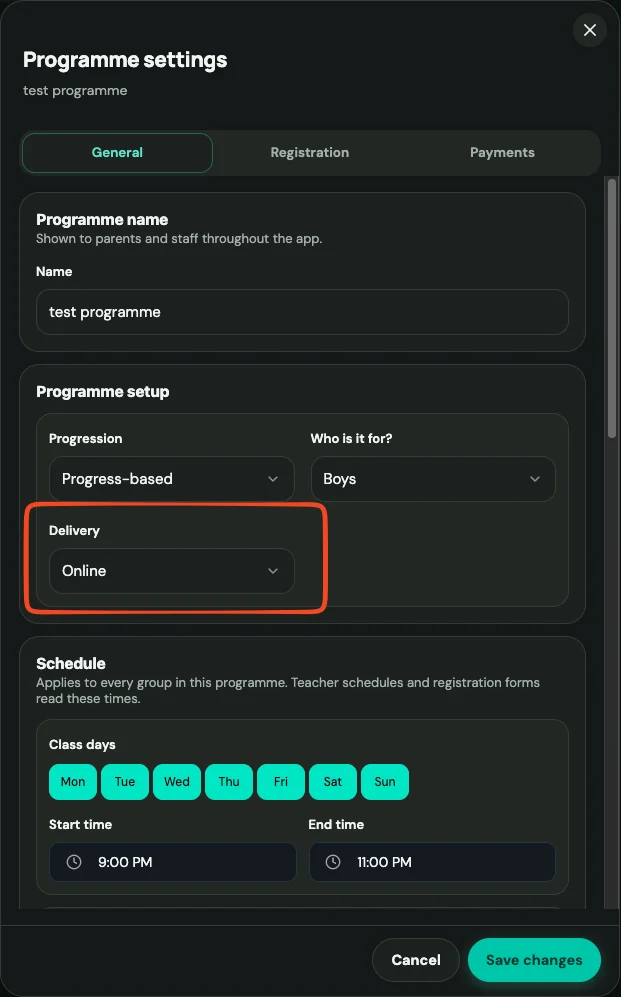
- Click Save changes. Labbaik creates the Zoom meeting and shows it on the class. If it says the video call is still being set up, check back shortly or save again.
New meetings start with video off for the host and participants, participants muted on entry, and no joining before the host.
Start the class
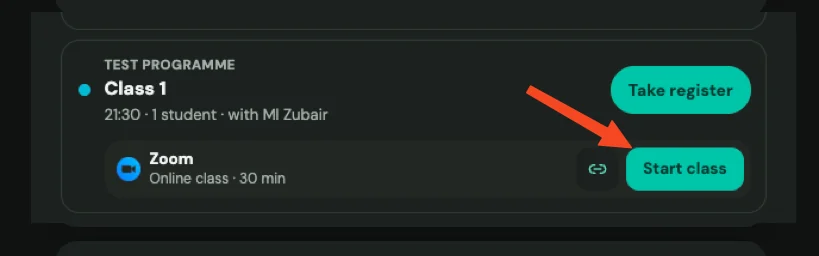
When it's time, an admin or the class teacher clicks Start class on the class, for example on their Home page. The meeting opens with them as host. On a free Zoom account, Zoom ends the meeting after 40 minutes.
How students join
- The parent or student signs in to their Labbaik parent portal.
- When the class has started, it shows as Live now. They tap Join now.
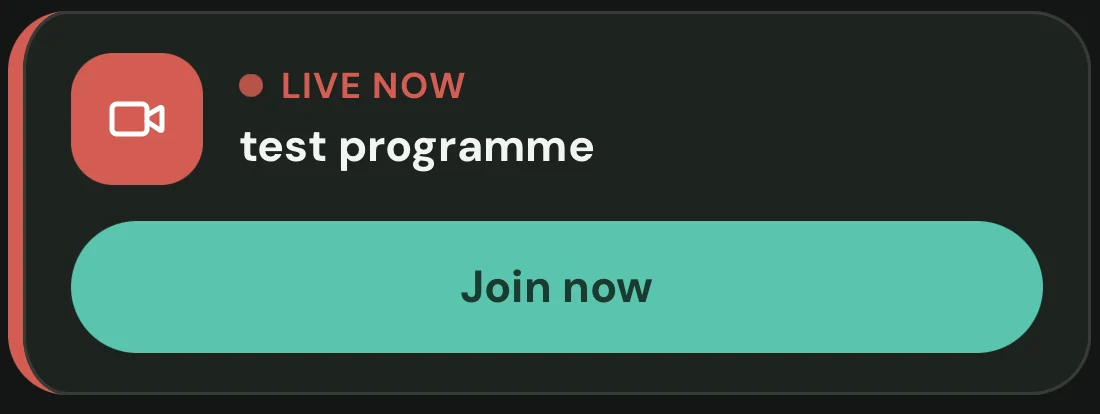
- They join the meeting inside the portal and allow camera and microphone access when asked. Labbaik marks them present automatically.
5. Running Online Events
You'll need: Zoom connected and a Labbaik admin account.
- Open Events and add an event.
- Set it to Online (or Hybrid) and publish it.
- Labbaik creates a Zoom meeting for the event, sized to its start and finish times, and shows the link on the event.
- When the meeting starts, everyone registered for the event is emailed their join link.
6. Troubleshooting
Zoom won't let me approve the app
The Zoom account you signed in with probably isn't an owner or admin, so it can't approve an app for the whole account. Sign in to Zoom with the account owner or an admin, or ask them to connect it. If you clicked Cancel on Zoom's permission screen, click Connect with Zoom again.
The Connect button says "Coming soon"
The app is still waiting for Zoom Marketplace approval. It will become available automatically once approved; there's nothing to change on your side.
Connect with Zoom is greyed out
Your organisation is using Labbaik Live. An organisation uses Zoom or Labbaik Live, not both. Open Account → Connected apps, turn Labbaik Live off, then click Connect with Zoom.
Labbaik says Zoom is already connected
Each organisation can have one Zoom account connected. To switch accounts, disconnect the current one (see Removing the App) and then connect the new one.
A class has no Zoom meeting
Check the class's Delivery is set to Online or Hybrid and that Zoom shows as Connected under Connected apps. Then reopen Class settings and save again.
The class doesn't show as live in the parent portal
It shows as live once the host has started the meeting. Make sure the teacher clicked Start class in Labbaik, then ask the parent to refresh the portal.
A student can't join, or has no camera or sound
- Allow camera and microphone access when the browser asks. If it was blocked, re-allow it in the browser's site settings.
- On iPhone and iPad, use Safari and keep it up to date.
- If joining fails, tap Try again, which reloads the meeting.
Labbaik says Zoom is no longer connected
The Labbaik app was removed from your Zoom account, so Labbaik disconnected Zoom on its side too. Open Account → Connected apps and click Connect with Zoom again, then reopen the class's Class settings and save to create its meeting.
Still stuck? Contact support.
7. Removing the App
From Labbaik
- Open Account → Connected apps.
- On the Zoom card, click Disconnect, then Disconnect again to confirm.
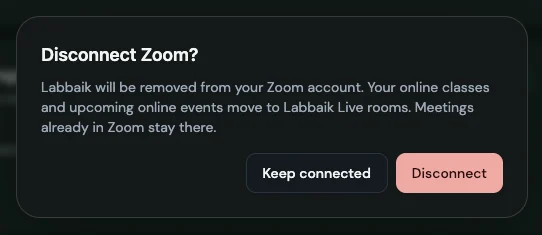
Labbaik revokes its access with Zoom, so the app is also removed from your Zoom account's Added Apps.
From Zoom
Removing the app in Zoom takes away Labbaik's access to your Zoom account. Only the account's owner or an admin can do it, because the app is installed for the whole account.
- Log in to your Zoom account as an owner or admin and go to the Zoom App Marketplace.
- Click Manage → Added Apps, or search for the Labbaik app.
- Select the Labbaik app.
- Click Remove. Zoom stops accepting Labbaik's access straight away.
Labbaik isn't in Added Apps? While the app is in pre-release, Zoom may not list it there. Disconnect from Labbaik instead (above): that revokes Labbaik's access in Zoom too, with the same result.
Afterwards in Labbaik: Labbaik notices the app was removed and ends the connection on its side, at the latest the next time it tries to create a meeting, for example when you save an online class. The Zoom card under Account → Connected apps then shows Not connected, and you can connect it again at any time.
What happens when you remove it
- Labbaik deletes its Zoom access tokens and the stored Zoom email for your account.
- Labbaik keeps the IDs and join links of meetings it already created, so your past class and event records stay complete. To have these deleted too, email salam@uselabbaik.com.
- Labbaik stops creating Zoom meetings. Your online classes and upcoming online events move to Labbaik Live rooms instead: straight away when you disconnect in Labbaik, or as you next save each class if you removed the app in Zoom. To run them, turn on Labbaik Live under Connected apps.
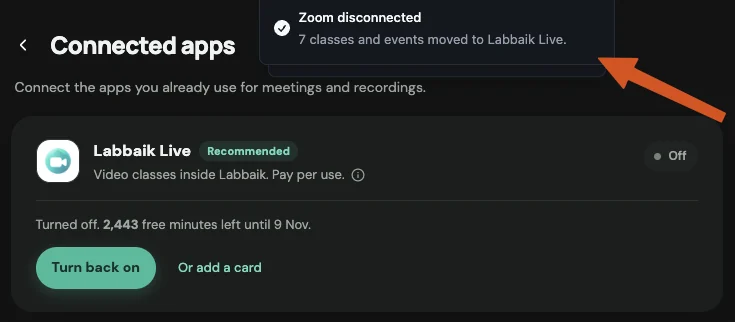
- Meetings that were already created stay in your Zoom account, and their existing links keep working in Zoom. Delete them in Zoom if you no longer need them.
- Your classes, students, attendance and other Labbaik records are not affected.
- You can connect Zoom again at any time.
8. Your Data
Labbaik stores the connected Zoom account's user ID and email, and the IDs and join links of the meetings it created. Zoom access tokens are encrypted at rest and only used by Labbaik's servers.
Labbaik does not read or store your Zoom recordings, chat messages or participant lists. For full details, see our Privacy Policy.
9. Getting Help
Message us on WhatsApp or email salam@uselabbaik.com, Monday to Friday, 9am to 5pm UK time. We reply within 1 working day. See Support for all the ways to reach us.